Installation Juno
Introduction
Juno enables optimal usage of Orchestra in a cloud-based environment. The goal of this environment is to connect multiple local networks to a global cloud infrastructure using Orchestra. Juno is a lightweight implementation of Orchestra that operates within a local system while communicating with a main Orchestra installation in the cloud.
Use Cases
The mechanism can be utilized in various scenarios and is not limited to a cloud environment. To illustrate the functionality of Juno with Orchestra, consider the following use case:
-
Precondition: An Orchestra installation (or multiple installations in the case of a cluster or cell system) is active within a network. This network may be a cloud environment or a local corporate environment.
-
Problem: Your organization operates multiple locations that need to share information with each other. These locations are not interconnected via a VPN or any other means. Orchestra should facilitate this communication. Certain channels must connect systems in the locations’ local networks to Orchestra.
-
Solution: Orchestra provides a lightweight local application that can be easily connected to an Orchestra installation in another network. This component can be installed quickly and is managed via the Orchestra Monitor. This application is known as Juno. Juno functions nearly as a complete Orchestra, allowing you to shift any desired channel onto a Juno installation, regardless of the scenario or Orchestra node.
-
Conclusion: The mechanism is highly flexible, as multiple Juno instances can connect to Orchestra. This design opens up numerous possibilities. A typical system architecture might resemble the following diagram:
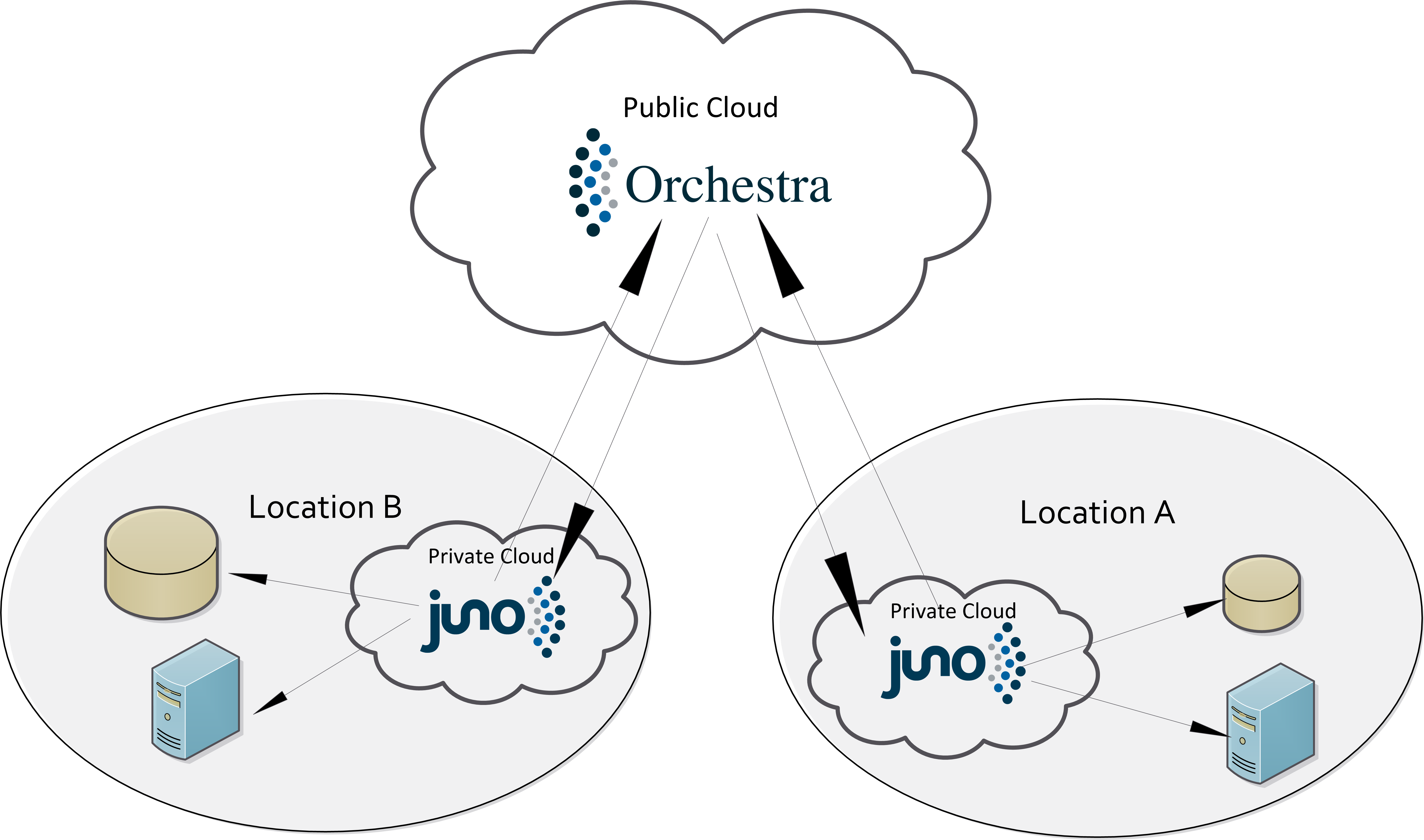
Orchestra Juno is not designed to function in conjunction with the LTA (Long Time Archive) on the integrated Derby database. Using this setup may result in undesired behaviors due to the limitations of the underlying technology.
System Requirements
The system requirements are heavily influenced by the specific functions Juno is executing. If Juno is only tasked with running a single channel or simple scenario, a host with modest performance is adequate. However, for more complex scenarios involving mappings and pre-processing, it may be necessary to allocate additional resources to your host.
| Component | Juno Development | Juno Production |
|---|---|---|
| Processor type | Dual-Core, AMD or similar | Quad-Core, AMD or similar |
| Processor speed | >= 2 GHz | >= 2 GHz |
| RAM | >= 4 GB | >= 6 GB |
| Disk space (Juno only) | > 10 GB | > 100 GB |
| Disk space (Archive/Protocol files) | - | > 50 GB |
The system requirements depend significantly on the Juno use case. A minimal setup is recommended for environments with low system load and minimal persistence on Juno. If increased persistence is required (volatile vs. persistent), RAM and disk space allocations should be upgraded accordingly.
Installation
Orchestra Juno can be executed directly as a command line tool. Ensure the juno-artifact has been extracted to the local installation directory before proceeding with the following steps.
- Download Juno from the Orchestra Server and extract the files.
- Configure the environment settings.
- Configure the logging properties.
- Run Juno.
Adjust These Values
Before using Orchestra Juno, adjust the environment settings in the file startscripts/orchestra_env.bat (or orchestra_env.sh for Linux).
| Setting | Usage | Default | Possible Values |
|---|---|---|---|
| ORC_HOME | Overrides the default value if not empty. Defines the folder where Orchestra is located (sub-folders include themes, WEB-INF, etc.). | Empty, uses a relative path "./orchestra". | Any path, relative or absolute, e.g., ORC_HOME="C:\Orchestra Designer\4.16.0.0\orchestra". Do not forget the double quotation marks if the path includes spaces. |
| ORC_JAVA_HOME | Overrides the default value if not empty. Defines the path to the Java folder for the Orchestra version being used. | Empty; automatically retrieves the Java version from the sub-directory "Java" or subsequently from the Windows registry. | Any path, relative or absolute, e.g., "C:\Program Files\Java\jre8". Don't forget the double quotation marks if the path includes spaces. |
| CMDLINE_OPTS | Uncomment this line. | Not used. Juno starts in proxy mode. | --enableStandaloneUse |
| JVMMS | Initial memory pool size in MB. | 256 MB | |
| JVMMX | Maximum memory pool size in MB. | 4 GB | |
| JVMSS | Thread stack size in KB. | 4000 |
Configuration of Orchestra Logging
The logging configuration properties are stored in the following file:
<installation dir>/base/classes/logging.properties
Adjust these values:
java.util.logging.FileHandler.pattern = ../../logs/orchestra_%g.mlog.level = WARNING
- The directory must exist, and Juno requires write permissions to it.
- Use forward slashes instead of backslashes for the path.
orchestra_%g.mlogis the name format for the log files.- The parameter
%ggenerates the numerical suffix for the log files. - The
.levelparameter specifies the granularity of logging. We recommend retaining the valueWARNING.
Other log level values include:
| Level | Description |
|---|---|
| SEVERE | Indicates only serious failures. |
| WARNING | Indicates potential issues as well. |
| INFO | Indicates informational messages. |
| CONFIG | Indicates static configuration messages. |
| FINE, FINER, FINEST | Indicates detailed messages, including every single message. |
Configuration of Derby Logging
Derby database logging can also be customized. To configure the Derby properties, edit the file:
<installation dir>/startscripts/<OS>/derby.properties
The following properties are predefined:
| Name | Default | Description |
|---|---|---|
| derby.stream.error.style | rollingFile | Setting this property to rollingFile (the only supported value) ensures Derby creates up to 10 rolling files named derby-0.log, derby-1.log, and continuing to derby-9.log, each with a maximum length of 1,024,000 bytes. You can override these defaults by adjusting one or more properties. |
| derby.stream.error.rollingFile.limit | 8,388,608 | Specifies the file size limit in bytes for each rolling log file before it rolls over to the next file, applicable if derby.stream.error.style is set to rollingFile. |
| derby.stream.error.rollingFile.count | 10 | Specifies the maximum number of rolling log files permitted before the oldest file is deleted when rolling to the next file, applicable if derby.stream.error.style is set to rollingFile. |
- To implement changes, you need to restart Orchestra.
- You can restore the default Derby settings by deleting the
derby.propertiesfile. - For more details on additional parameters, refer to Derby-Docs (apache.org).
Optional: Choice of Operating Mode
Orchestra Juno can be configured to operate either as a command line tool or as a Windows service.
Juno as a Command Line Tool
No additional steps are required for Juno to run as a command line tool.
Installation of the Windows Service
To function as a Windows service, Orchestra Juno utilizes the Apache Commons Daemon, which enables Java applications to run as Windows services. For more details about this daemon, please refer to the Apache documentation.
The installation and uninstallation of the service can be accomplished with the following scripts located in the startscripts/WindowsService folder:
juno_service_32bit.cmdfor a service in 32-bit environmentsjuno_service_64bit.cmdfor a service in 64-bit environments
Based on your Windows installation, select the appropriate 32-bit or 64-bit executable. Be sure to open a command line with "Run as Administrator," as administrator privileges are essential for service installation.
Available commands:
juno_service_<bit>.cmd installto install Juno as a service.juno_service_<bit>.cmd uninstallto uninstall the Juno service.juno_service_<bit>.cmd updateto update the Juno service.
Starting Orchestra Juno
To start Orchestra Juno, double-click on orchestra_juno.cmd (or orchestra_juno.sh) in the startscripts folder.
Once startup is complete, the Juno Monitor will be accessible at the URL http://localhost:8090/monitor/.